Showing posts with label Online assignments. Show all posts

Tuesday, April 19, 2016

Recap

Have you heard about Recap? It's a relatively new tool that has some great features! In a nutshell, Recap is a completely free assessment resource (available on the web or through an iPad app) that lets students respond to the teachers' questions or prompts via video.

Website | iPad App

With recap, teachers can...
  • create questions that are typed or voice-recorded 
  • choose how students will sign in: 7-digit alphabetical PIN or e-mail address/password
  • add up to 10 questions in a single assignment (and, as of the newest update on April 12, teachers can now give more than one assignment to students at a time)
  • give an assignment to the whole class or only certain students
  • set a max response time to make grading faster and students' answers more precise
  • set a due date for assignments
  • add a poll at the end of an assignment that asks students how well they think they understood the material
  • view individual student information or the entire class's responses as a whole
  • grab the link to an individual video to share with others (e.g. parents, admin, your co-teacher, and/or social media)
  • leave written feedback/commentary on student videos 

The view is super-simple from the students' side. Learners indicate that they are a student on the login screen:
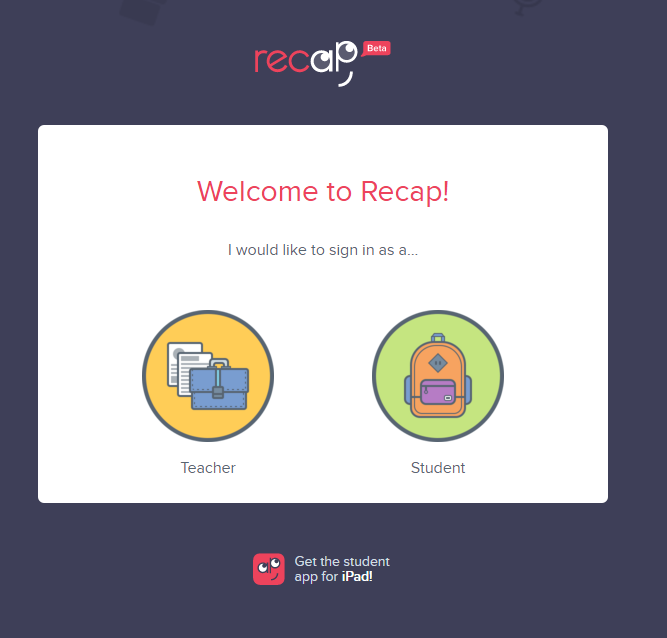


Students can sign in with a class PIN or an e-mail address (whichever option the teacher enabled when he/she set up the class):


If signing in with a PIN, the child must then select his/her name from the class list before seeing any assignments:


The student dashboard allows learners to see previously submitted assignments as well as those that have not yet been completed. The dashboard is also where students can view feedback from their teacher on submitted assignments. (Note that students cannot see other students' assignments or answers.)


This video -- filmed by EdTechTeacher's Greg Kuloweic -- shows you Recap in action from both the teacher and the student side (but keep in mind that a couple of features have been added since this video was released):


I already use Seesaw...should I still consider Recap?

While there are similarities between Seesaw and Recap, it's important to recognize that these are two completely different resources. Recap is strictly for assessing students via video (and follow-up poll if the teacher enables it), while Seesaw is more of an ePortfolio tool that happens to have a video feature, too. If you are a Seesaw user, you may still consider incorporating Recap for the opportunity to differentiate questions and/or allow students to turn in video responses confidentially. 

To integrate Recap with Seesaw on iPads, first make sure the Recap app is on all student devices. Then push a note in Seesaw to the entire class with the login information (e.g. 7-digit PIN if students are without e-mail addresses), as shown below.

Seesaw user tip: create a folder just for login information

While students cannot copy the PIN from the Seesaw note directly into the Recap app, this at least provides a consistent place for students to find login information independently. 


Resources:

Thursday, March 19, 2015

TCEA Favorite Finds: Google Flubaroo and autoCrat


Teachers, are you interested in a free, online tool to grade online assignments in under a minute?

Do you want to be able to get immediate analysis on student performance and email students their scores?

Have you heard about Google Sheets and Add-ons which extend the capabilities of the spreadsheets?
One of my favorite Google tools and take-away from TCEA is Google Forms, Google Sheets, Flubaroo and autoCrat.

Flubaroo makes grading online assignments in under a minute and measuring student performance a breeze.


Excited to share, upon return from TCEA we immediately gathered teachers to share Google Forms and Flubaroo.

Carroll High School (CHS) teachers are using Flubaroo to grade assignments via Google Forms, using Flubaroo with Google Docs to collect data and as a classroom student response system, and using self-graded Google forms.

Read how other teachers are using Flubaroo at What people are saying about Flubaroo.

The CHS Associate Principal, Dr. Ellis, is using this Google Forms and Flubaroo add-on to supplement the campus STAAR online training and Professional Development.

Dr. Ellis created a STAAR training presentation, turned it into a video with voice over, uploaded the video to a learning management system, and is using a Google Form to check for learning and staff completion of the training.

autoCrat is an add-on for Goggle Sheets that automates the creation and sharing of personalized (e.g.merged) Google Docs or PDF email attachments from columns of data in a Google Sheet.


This feature gives teachers that ability to create personalized certificates and letters to parents and students. On campus we plan to explore uses of autoCrat for beginning of the year gathering of data for students, parents, teachers and booster clubs as an efficient way to create and share personalized email attachements.

If you want to learn more about autocrat, this is a great ten minute youtube video. https://www.youtube.com/watch?v=eDbpjlDAepI