Showing posts with label iPhone. Show all posts

Wednesday, May 4, 2016

10 Must-Do's Before Giving a Kid an iPhone or iPod

Today's generation was born with a device in their hand; not really but it sure seems that way. As a mother of teen daughters, I want to know the best way to keep them safe on their devices. The device of choice for our household is Apple. It is the device I know best and can protect my girls to the best of my ability. This post is a collection of things I feel are "must-dos" before handing your child an iPhone or iPad. Some of these I followed, some I learned about later and put into action. 
  1. Set Up Family Sharing
    • Family Sharing allows up to six people in your family to share each other’s iTunes, iBooks, and App Store purchases without sharing accounts. As a parent, kids will share the credit card on file for purchases, but you must approve them first. You can also share photos, calendars, and Apple Music. 
    • Here are a few resources for Family Sharing: 10 Things to Know Before Enabling Family Sharing; What is Family Sharing; and How to Set Up Family Sharing.
    • I currently do not use Family Sharing because this option was not available when my daughters first received their devices. Since then I have moved my oldest to her own account, but since she is in college, she manages that account with her debit card. 
  2. Create Apple ID for Child
    • Apple now lets you create a child account for children under 13. You must participate in Family sharing to set up a child account. I'd suggest enabling "Ask to Buy" option, so your approval is needed for any purchases and enabling "Share Location." 
    • Here's a guide on how to create an Apple ID for minors. 
  3. Set Passcode
    • Establish a passcode for your child's device. You can enter a six-digit passcode. Or tap Passcode Options to switch to a four-digit numeric code, a custom numeric code, or a custom alphanumeric code. For young children, I'd suggest a simple four-digit numerical code. 
  4. Set Touch ID
    • You must first have a passcode before using the Touch ID. You can add up to 5 fingerprints. I'd suggest adding parent fingerprints to children devices.
  5. Enable Find My iPhone
    • Find My iPhone is great for locating lost phones, but my favorite way to use it is for stalking my daughters. Just kidding...not really. I use this feature to track my oldest daughter when she is traveling home from college. On a funny note, she knows I do this and one day she texted and said: "Can you ding my phone because I cannot find it in my dorm room?" 
    • Features of Find My iPhone: 
      • Activate Lock Mode
      • Erase iPhone
      • Display a Message if Lost
      • Track Phone (track for last 24 hours when in lost mode)
      • Play Sound
  6. Set Restrictions
    • I'd suggest setting the following restrictions on devices for children:
      • Safari - when you enable Safari you give children access to everything on the internet. I'll talk later about the possibility of a safe browser for iOS devices.
      • In-App Purchases
      • Change ratings for Music, Movies, TV Shows, Books, Apps, and Websites.
  7. Consider Purchasing Safe Browser
    • There is no filtering system for Safari when using mobile devices when connecting to a cell service. 
      • As an option, you can have them to connect to your personal wifi and set restrictions on your wifi.
      • Purchase a safe browser for iOS devices. Mobicip is not a free service, but it does have some great features. Here are a few:
        • Parent/Admin App
        • App Monitoring
        • View Browsing History
        • Access Requests - user can request for sites to be unblocked
        • Time Limits
        • Custom Filter Settings - allow/block domains, blacklist phrases.
        • Multi-User, Multi-Device Management
  8. Get Protective Case
  9. Get Screen Protector
    • Screen protectors are a great way to protect your glass from breaking. My new favorite screen protector is made by Zagg and called the Invisible SHIELD glass protector. The shield is made out of glass, so if you drop your phone, the idea is that the glass screen protector will break before the device screen. Another great benefit of the Zagg screen protector is that it comes with a lifetime warranty. Yes, I said LIFETIME WARRANTY.  Things to do when you buy the Zagg Invisible Shield:
      • Go online to Zagg.com, create an account, and register your screen protector. 
      • When your Zagg screen gets a crack or break, go online and request a replacement.
      • When the replacement arrives, change out the screens but KEEP THE BROKEN ONE. You must return the damaged one in the self-addressed envelope sent to you. 
      • Screen replacements cost anywhere from $0-$10 plus $6.00 for shipping.  
  10. Consider Apple Care
    • Apple offer extended warranty services. For children and teens I recommend this service. I can't tell you how many times we've replaced our phones with broken screens when my girls were younger. Here's a link to What to know about Apple Care for iPhones.
Resources:
Costello, S. (2016). 14 Things to Do Before Giving Kids an iPod touch or iPhone. About.com Tech. Retrieved 3 May 2016, from http://ipod.about.com/od/KidsiPhoneiPodTouch/tp/Nine-Things-Before-Giving-Kids-Ipod-Touch-Iphone.htm

AK, S., Ranjit, P., Lee, S., Firdaus, T., Firdaus, T., & KS, A. et al. (2016). 5 Ways To Make Your iOS Devices More Kid-Friendly And Child-Safe. Hongkiat.com. Retrieved 3 May 2016, from http://www.hongkiat.com/blog/tricks-make-ios-device-kid-friendly/

Carlson, J. (2016). 10 Things to Know Before Enabling Apple's Family Sharing | 1: You need iOS 8 and OS X Yosemite. | Peachpit. Peachpit.com. Retrieved 3 May 2016, from http://www.peachpit.com/articles/article.aspx?p=2320215

How to create a new child ID for Family Sharing. (2014). iMore. Retrieved 3 May 2016, from http://www.imore.com/how-create-new-child-id-family-sharing


Tuesday, December 8, 2015

Apps for the Holidays


If you are like me, you are probably on holiday overload, from all the shopping, to decorations, to preparing for travel and much more. Take a break and check out some of my favorite apps.

The following app categories are:
  • Shopping - learn some ways to save a buck during the holidays.
  • Food - from mobile ordering to recipe collection
  • Photos 
  • Social Media - I've embraced Snapchat as a way to communicate with my college daughter
  • Travel - apps to help police sightings, places to stop and where to find cheap gas
  • eReaders - check out ways to get free books via Overdrive and much more
  • Music streaming
  • Television apps - catch up on all your favorite shows
  • Games - fun gaming apps to play with others and stand alone
  • Crazy Photo/Voice - have fun with your children making fun video with crazy faces and voices
Below is a Thinglink with descriptions and links to the app. Hover over the picture of the app to read the description and get the link. Many apps can be found in the iTunes store and the Google Play store. However, the link for each app is for the iTunes store.


Tuesday, September 15, 2015

Help...I'm Out of Storage on My iPhone!

The worst messages that can pop up on my iPhone are the following...
  *  Storage Almost Full
  *  Cannot Take Photo
  *  Cannot Record
  *  Not Enough Space
  *  Manage Your Storage
So what happens now? How does one go about managing the dreaded storage issue on an iPhone? This blog post is a gathering of information from other posts and will offer some ways to clean up your iPhone and create more storage. But before we start with ways to create more storage, let's take a look at what items are taking up the most storage on your phone.

Go to Settings/General/Usage and then Manage Storage. A list will populate as to what storage is being used.


Now that you know where all the "gremlins" are located, time to get your storage under control. Here are a few tips for cleaning up:
  1. Delete Apps You Don't Use
    • Take stock of the apps that you really, truly need -- ones you use at least once per day or more -- and keep those. I'm notorious for downloading apps for the sake of downloading. Be selective with apps that you keep on your phone. 
  2. Delete and Reinstall Apps
    • Apps that have been on your iPhone for awhile tend to accrue data. Some of the worst offenders are social media apps, like Facebook, Instagram and Twitter. As you use these apps, data builds up, and the only way to delete it is to remove the app. 
    •    
  3. Be Choosy With Your Music
    • The days of storing all your songs on your device are over. Download the albums you love, and stream the rest. Consider downloading Spotify or Apple Music to listen to any music you want without hogging your phone's memory. Here is a comparison between the two: http://goo.gl/ya6m7K (NOTE: Spotify offers a student discount for $4.99 a month.)
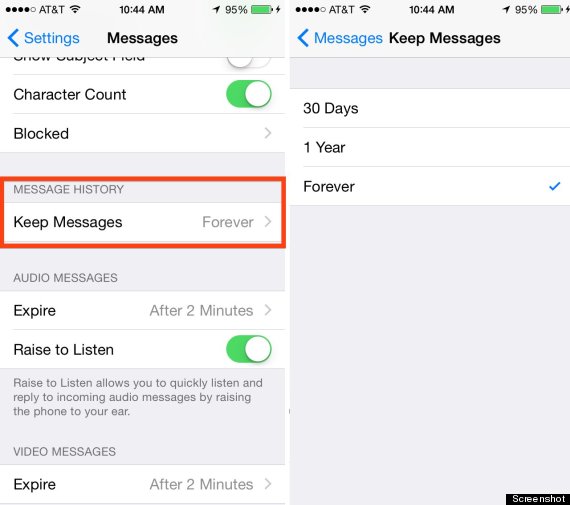
  4. Delete Those ZILLIONS of Texts
    • Sentimental types, brace yourselves. You're not helping anyone by hoarding all those texts on your phone. In iOS 8, you can change your settings to automatically delete read texts after a month (instead of the auto setting 'forever'), which will prevent iMessage causing you storage woes in the future.

Wednesday, April 22, 2015

Quizizz: Game-Based Student Response System

Quizizz is a new multiplayer, game-based student assessment tool that can be used on any device with a web browser. One of the things that sets Quizizz apart is that it is self-paced and quiz questions, answers, and leaderboard all show on the student device.

Getting Started

  • To get started, create your FREE account at Quizizz.com
  • As a teacher, you have the option of choosing a quiz from the online community, or you can create your own quiz. I especially like that hovering over a quiz gives you an at-a-glance preview of the questions, so you can quickly determine if it fits your needs. If you select the quiz, you get a preview list that shows all questions and answer choices.
  • If you choose to create your own quiz, the process is simple and fast. Quiz creation happens in split screen. Meaning, as you type your question items (multiple choice or true/false, with or without an attached image), you are also seeing what the question item will look like for students. You also have the option to set the response time limit anywhere from 5 seconds to 5 minutes for each question.


Playing the Game

  • Much like Kahoot, students use a code to join your quiz, so there is no need to create student accounts, and there is no app to download. 
  • Choose the quiz you want to administer, and select your options such as jumbling question order for students, showing/hiding the leaderboard, show memes after each question, etc. 
  • Once you proceed, students navigate to join.quizizz.com and enter the quiz code projected on the screen. Once everyone is in, you’re ready to start the quiz. 
  • Quizzes are self-paced. When participants finish the quiz, they have the option to review their answers while they wait on others to finish.
  • As a teacher, you can download the student responses in to an Excel spreadsheet. The spreadsheet provides data not only on the class as a whole, but also for individual students. 


Tips:
  • Do you plan certain subjects or lessons for your team? 
    • After you create your quiz, share the link with your team members. 
  • Want to challenge another class? 
    • Share the join code with the other class. Since all questions, answer choices, and leaderboard rankings appear on the student devices, players don't need to be in the same room. 
  • Want students to get to the join page faster? 
    • When they visit the join page for the first time (on an iOS device), have them add the link to their home screen for easy access next time. 
  • Have a feature suggestion for Quizizz? 
    • Tweet them @quizizz and let them know! They welcome teacher feedback.

Tuesday, January 7, 2014

Wishes Come True with Siri

The new year is here and time to try the new features in Siri. If you have an iPhone and haven't tried Siri, Apple's voice command system, then you should give it a try. When you first start using Siri it is important to remember that your voice will be misunderstood at first. Keep using it so Siri can become familiar with your voice and commands. When iOS7 came out Siri was also updated. Take a moment to read some of my favorite things Siri can do from the article by Bakari Chanavu. 

Wednesday, October 16, 2013

5 Things Tech Tools Can Do That You Didn't Know

1. Travel Smarter with Google Maps
  • Planning a trip using Google Maps provides users with the following features:
    • Create a new map.
    • Save places to stay on the new map.
    • Save travel plans and transit on the new map. This will show traffic and local public transit along with the cost.
    • Enable the weather feature on the new map.
    • Explore the area of the new map by enabling the webcams of the street view.
    • Plan the itinerary by exploring food and activities on the new map.
  • Read the full article by clicking here
2. Smart Ways to Use Cloud Storage
  • Just a few unique ways to use cloud storage
    • Share large photo albums with friends and family via cloud link
    • Family history vault
    • Store owner manuals
    • Create video quizzes on Google Drive
  • Read the full article by clicking here
3. How to Get Wifi Free
  • Ways to get free wifi
    • Get free wifi from your cable company - Cox and Time Warner Cable - click here
    • Tether your phone from your computer - iOS device; Android device
  • Read the full article by clicking here
4. Things I Didn't Know My Smart Phone Could Do
5. Dictate Emoticons to Your Phone
  • Emoticons are so fun but did you know you could add emoticons through voice activation?
    • iOS Device - turn on Siri and say "winky", "smiley", or "frowny" to get the emoticons.
    • Android Device - say "smiley face" or "frowny face" to get the emoticons.
  • Read the full article by clicking here 
BONUS:
5 Battery Saving Tips for your Mobile Device - http://www.edudemic.com/battery-saving-tips/

Monday, October 7, 2013

Share Images over WiFi with Image Transfer


Image Transfer (free)
Photo and Video Transfer ($1.99)

Have you ever wanted to transfer photos and videos from a computer to one or more iOS devices or vice versa? Do you want your students to have a quick and easy way to send you screen shots of their work or share images with each other for a project? Emailing images isn't always a viable option considering limitations on file size and the number of images you can send. Transferring images and videos over wifi is the answer.

Image Transfer and the paid version, Photo and Video Transfer are probably the easiest apps I have found for transferring photos and videos between multiple devices or between devices and computers. The only requirement is that the iOS devices must be on the same wireless network and the computers need access to the internet. A username and password are not needed.   While the free version does limit you to 5 photos at a time, it would be a great way to try the app out for yourself. You can upgrade from within the app if you decide you need to transfer more than 5 photos at a time or you want to transfer videos. You can even transfer between devices that have both free and paid versions.

Transferring images between iOS devices over WiFi using Image Transfer:

  1. Each device that you will be transferring images to/from needs to have the app installed and open.
  2. Make sure all mobile devices are on the same wireless network.
  3. Click the "Send" section of the app to choose photos to send.
  4. When the photos have been selected, click the Send button in the upper right hand corner and choose "Send to iPhone or iPad". The app will look for devices on the same network.
  5. Click on the name of the device you want to send images to.  A transfer progress window will appear and let you know when the transfer is complete. The receiving device will show a message that the photos were saved to the Camera Roll.
  6. Click "Done".

Transferring between iOS devices and a computer 

This process is very similar.  Choose "Send to a Computer" instead of an iOS device.  The app will provide a permalink address for you to enter into a browser on the computer. Images are then downloaded from the iOS devices or uploaded to them through this URL.

Classroom Uses for Image Transfer

  1. With the free app, students can transfer up to 5 images to each other for sharing in a project or to the teacher for grading. 
  2. With the paid app, students can transfer more than 5 images as well as video projects, recorded book reports and video captures of work done in whiteboard apps that allow saving to the device's photo album (ex. DoodleCast Pro and Sago Mini Doodlecast)
  3. Students and teachers can share their field trip photos for slide shows, how-to demonstrations and much more. 
What ideas can you come up with?  Please share in the comment section.

If you are looking for a similar app for your Android device, check out Image Transfer App available on Google Play.

Thursday, September 19, 2013

iOS 7 is Here...What to Know Before and After Downloading

iOS 7 is here so what should you know before and after downloading Apple's new operating system? It always surprises me how many people experience difficulties when Apple releases new operating system updates. As I look back over the releases I realize that the problem lies in forgetting some of the basic steps. This post will look at two major basic steps that many users forget to do before they jump into downloading a new operating system. Then you will find eight tips on how to maneuver through the changes after the download is complete. 

BEFORE downloading iOS 7, two basic steps to follow:

1. BACKUP. BACKUP. BACKUP.
  • You should always backup your device before making such a big change as downloading a new operating system. That way if any contacts, calendar appointments, notes, etc. are compromised during the download you can retrieve them by restoring your phone to the last backup. That's what I call "Apple 101." Before you go to the Apple Genius bar - backup, get a new phone - backup, download a new iOS operating system - backup, or for good measure just backup every couple of weeks in case your phone crashes.
    • iCloud Backup vs. Computer Backup
      • I am not a big fan of backing up to iCloud because Apple only gives you a certain amount of space for free. Each backup requires additional space which will eventually deplete. Plus, I found it difficult to find my backup when I used iCloud.
      • I find it much easier to backup my devices to the computer. Be warned...make sure your computer is also being backed up via an external hard drive or some type of cloud storage. 
  • In all my years of owning an iOS device, I have yet to lose my contacts, photos, notes, calendar appointments, etc. I say that boldly because I have a rule of thumb and that is that I back up my devices at least once a month. Should something disappear, I can go back and restore my device to the latest backup.
2. UPDATE YOUR APPS
  • With the release of iOS 7, app developers are quickly pushing out their updated apps. Be sure to go to the App Store and run the updates. Anytime a new operating system is released users need to update their apps so they are compatible with the new system.
  • Warning about Updating Apps: Be sure to read the fine print before pressing the update button. Developers will list what is included in the download and if there could be complications. Sometimes it is better to wait depending on what is listed in the update.

AFTER downloading iOS 7, a few tips on changes:

1.  Notification Center 
  • New tabs at the top: Today/All/Missed
  • Today reveals the weather and your calendar for the day.
  • All reveals all notifications.
  • Missed reveals any notifications that were not seen.
2.  Spotlight Search
  • The spotlight search feature has moved. No longer does swiping to the right reveal the spotlight, but now swipe down (but not swiping from the top of the screen or you will get the notification center) to get to the spotlight search feature.
3.  Shutting Down Apps
  • Normally, if users want to close out apps, they double tap the home button and pick the apps they want to close. In iOS 7, after the double tap, apps now appear as a series of screens users scroll left to right. To close apps, simply swipe up.
4.  Deleting Emails 
  • In the past, users could swipe left or right on an email to delete. Now users have different options per swipe. Left swipe gives the trash or move option. Right swipe opens the email.
5.  Bigger Folders
  • Folders are no longer limited to a certain number of apps. Each one will now hold as many apps as you choose. New pages are created within the folder to accommodate the apps added.
6.  Blocking Numbers
  • There's now an option to block callers. You can do this with settings/phone/block and add new, contacts, or numbers found in the Recents menu. Click the info button on the right and scroll down to Block. The feature will block any phone calls, messages or FaceTime chats from that contact.
7.  Camera
  • There are more options right in front of you, like High Dynamic Range and Panorama. 
  • There's also a new Square option and native filters; Instagram fans will love this. 
  • Photos are organized differently, too. There's the standard albums, but when you tap the Photos icon at the bottom left, you can view images as "collections" sorted by date.
  • Albums now contain a video and panorama album.
8.  Control Center Features
  • From the lock screen, swipe upward on the bar located at the bottom of your device. When you swipe you now have access to these features.
    • The top section has five features: Airplane Mode, Wifi, Bluetooth, Do Not Disturb,Orientation Lock
    • The middle section features:  Music and Brightness control
    • The bottom section features: Flashlight (new feature), Clock/Timer, Calculator, Camera

Additional resources for this article:

Monday, January 16, 2012

Pinterest Boards for Education

Pinterest in Education

You were introduced to Pinterest back in November 2011 when Jennifer Waldroop did an introductory post on "Pinning for Pinterest". Now it is time to start following educational boards on Pinterest. Each board offers resources for education. Choose boards as they relate to your field of study or interest. Here's a list of some great boards you may want to start following.


 My Favorite Boards to Follow
  • Commerce ISD: Click here to see their boards...so many resources (interactives, TEKS, apps, curriculum based on subject area, flipcharts, virtual field trips, and so many more)
  • iPad Apps for Education: Click here to follow this board from "Recess Duty"
  • iPad Resources: Click here to follow this board from Janet Corder
  • Promethean Resources: Click here to follow this board from Janet Corder
  • Promethean Resources for Elementary: Click here to follow this board from Tracy Worley
  • Technology Educational Blogs to follow: Click here to follow this board from Kristie Johnson (tons of web 2.0 resources found on these blogs...great place to get ideas for integrating technology in curriculum)
Website of the Week:
Learning in Hand.  If you are interested in implementing mobile learning then this website if for you. Tony Vincent is an independent consultant from Phoenix. His website is filled with information about iPads, iPods, iPod touch, netbooks, Podcasting, and much more. Check out his website for great resources. You can also follow Tony on Twitter (tonyvincent). He will tweet apps for education on a regular basis.  http://learninginhand.com/

Tip of the Week:
Agenda Calendar $.99...if you own an iPad, iPhone, or iPod you don't want to miss this app.
  • It syncs with your device to give you a much easier view of the events listed on your calendar. 
  • Download the app, click on it, and your calendars from your device appear. 
  • The first view is a list view of the days. 
  • Be sure to swipe the screen to the left for the day view...then swipe up or down to switch days. 
  • From the day view, if you swipe to the left again you will see the individual events listed. From that view you can email or copy event. 
  • Click here to download the app.

Monday, December 12, 2011

At Home during the Holidays

At home activity during the Holiday break...
Watch TED talk by Sir Ken Robinson 
TED talks website states that Sir Ken Robinson is a "creativity expert...that challenges the way we're educating our children. He champions a radical rethink of our school systems, to cultivate creativity and acknowledge multiple types of intelligence." His famous speech has been animated by RSA. You Tube notes that 6,240,593 people have viewed this version of his speech.

As you listen to this speech, think about how you learn new things best. 
                           

Website of the Week:
Conversations in the Cloud
Kids today prefer to learn online. VoiceThread allows for group conversations. These conversations are collected (in the "cloud," which means on the internet) and shared in one place from anywhere in the world. All with no software to install. "A VoiceThread is a collaborative, multimedia slide show that holds images, documents, and videos and allows people to navigate slides and leave comments in 5 ways - using voice (with a mic or telephone), text audio file, or video (via a webcam). Share a VoiceThread with friends, students, and colleagues for them to record comments too." Many teachers and students are using VoiceThread across the country. 


Create an account and click on MyVoice. Explore the site. Ask your campus instructional technology specialists for assistance! Here is a great wiki with VoiceThread resources: http://technologyintegrationshthornt.pbworks.com/w/page/20286944/Voice%20Thread

iPhone Tip of the Week: Double Tap Shift for Caps Lock


I have had an iPhone since 2008 and did not know this trick until I was perusing a blog. 
In order to have Caps Lock, all you have to do is double tap shift. However, you must enable it. Go to "Settings > General; Keyboard; Enable Caps Lock." Then, double-tap the shift key to type in capitals. 

If you would like more iPhone tips, see the following site: http://iphone.appstorm.net/how-to/30-super-secret-iphone-features-and-shortcuts/