Showing posts with label Time-Savers. Show all posts

Thursday, January 21, 2016

#Productivity #TipsforYou

What is the ONE thing that all teachers need? If you guessed time, you are right! This month, we are sharing productivity tips, tools, and apps. Here are a few of my favorites:
  1. Move an Email to Outlook Calendar- Select the email and drag it to the calendar icon (bottom left of the Outlook window). When the appointment window pops up, modify the date/time/details to block out time to address the email
  2. Give your mouse a rest and review some keyboard shortcuts here.
  3. When you receive a document that needs to be signed, don’t print it out. Save a tree and use Hello Sign. (Click here for an overview of how it works.) To get started, visit the Hello Sign web site or download the Chrome extension to use in Gmail. 
What are your favorite productivity tips? Do you have an app that you love? Leave a comment and share your favorites.

Tuesday, November 3, 2015

8 Ways to Quickly Share Links with Students

It can sometimes be challenging to share links {especially long ones} with students, but here are 8 ways to share that will make your life easier.


1. Canvas
A group of CISD employees is piloting Canvas this year. If you're part of the pilot group, Canvas is a great way to share links with your students!


2. Link on your website
CISD staff members already have a pre-built website to customize and store links. If you house a blog on Blogger or Weebly, you can also drop your link there.

Teach your students to navigate to your website for everything {they'll get quicker with more practice!}, or save your website on the home screen as an "app" on iOS devices.


3. AirDrop


I've found this to be the fastest way to share anything across newer iOS devices. {Learn more about AirDropping here.} Keep in mind that AirDrop only works for the following devices: iPhone 5 or higher, iPad 4 or higher, iPad mini or higher, iPod Touch 5th generation or higher.


4. Symbaloo
This free tool lets you store a collection of links all in one place. {Click here to read more about Symbaloo.} 

While there is a free iOS app available, downloading it on student devices isn't necessary. My favorite way to share a Symbaloo with students is to link a QR code to the Symbaloo and let students scan when needed. I did this for a webmix of quick EdTech instructional videos for students, and it worked really well. You can also save a webmix of student links on an iOS device screen as an "app."


5. QR code


There are a ton of QR code generating websites and apps, but my favorites are this website and this app. It's easy to print a few sheets with QR codes to all the class links and hang them around the room for quick student access.


6. Seesaw

Seesaw is a free ePortfolio tool that is perfect for the K-12 world {particularly K-4}. One of Seesaw's features includes the ability to drop a link into each student's journal/portfolio so students can access it with one click. Click here to read more about the linking feature, and click here to read a blog post series about Seesaw.


7. Google docs
Create one Google doc or sheet that houses all your classroom links {if using docs, consider creating a Table of Contents}, and share with students.


8. Google Tone


Personally, I have yet to get to try this method, but it sounds promising! Google Tone is a Chrome extension that allows users to send a link wirelessly to other computers with Tone installed. Click here to read more about Google Tone.


Resources

Wednesday, October 16, 2013

5 Things Tech Tools Can Do That You Didn't Know

1. Travel Smarter with Google Maps
  • Planning a trip using Google Maps provides users with the following features:
    • Create a new map.
    • Save places to stay on the new map.
    • Save travel plans and transit on the new map. This will show traffic and local public transit along with the cost.
    • Enable the weather feature on the new map.
    • Explore the area of the new map by enabling the webcams of the street view.
    • Plan the itinerary by exploring food and activities on the new map.
  • Read the full article by clicking here
2. Smart Ways to Use Cloud Storage
  • Just a few unique ways to use cloud storage
    • Share large photo albums with friends and family via cloud link
    • Family history vault
    • Store owner manuals
    • Create video quizzes on Google Drive
  • Read the full article by clicking here
3. How to Get Wifi Free
  • Ways to get free wifi
    • Get free wifi from your cable company - Cox and Time Warner Cable - click here
    • Tether your phone from your computer - iOS device; Android device
  • Read the full article by clicking here
4. Things I Didn't Know My Smart Phone Could Do
5. Dictate Emoticons to Your Phone
  • Emoticons are so fun but did you know you could add emoticons through voice activation?
    • iOS Device - turn on Siri and say "winky", "smiley", or "frowny" to get the emoticons.
    • Android Device - say "smiley face" or "frowny face" to get the emoticons.
  • Read the full article by clicking here 
BONUS:
5 Battery Saving Tips for your Mobile Device - http://www.edudemic.com/battery-saving-tips/

Tuesday, August 6, 2013

Begin the School Year with Remind101

The new school year is here so don't miss out on a great tool to use this year. Remind 101 is a safe way for teachers to text message students and stay in touch with parents for free.

What makes Remind101 safe? 
  • Teachers never see their students’ phone numbers, students never see theirs. Remind101 is a oneway broadcast system.
What are ways to use Remind101?
  • Field trip reminders 
  • Motivational messages 
  • Homework/exam reminders
  • Schedule changes
  • School sport updates
  • Staff updates such as faculty meeting reminders, weather updates, etc.
Here is a guide from Remind101 explaining what it is, what makes it safe, and best practices for using it. 

Tuesday, April 17, 2012

Class Dojo Will Put the Mojo Back Into Your Class


Behavior Management and Student Engagement Software

Whether it's the third grader that just can't seem to focus or the senior with a bad case of senioritis, Class Dojo is an interactive site that  engages those students in the classroom by recognizing positive behaviors as they happen in a fun and colorful way!  What is really great is the simplicity of the site. Using a computer or a smart phone, the teacher sets up the classes and students and then determines what types of behaviors to reward or the types of behaviors to discourage. Students accumulate points (or have points deducted) based on the parameters set. The class can be setup with reward sounds and the teacher can manipulate the class settings to create a running total or end the points for the day. Additionally. ClassDojo provides behavior-tracking analytics, dashboards and reports for parents and administrators, all at one-click. No extra data entry required! A demo class is set up so you can just copy it and move on if you don't want to personalize your class.  Teachers can get really creative with this and use it as a tool to encourage interaction and participation and make behaving in class FUN! Students could work on accumulating participation points for a grade, extra credit or class reward. It's up to you! 

 Right now it's still free so be sure to sign up today, even if you aren't going to use it until next year! Click here to join: http://bit.ly/HZT8GA


Website of the Week: Niceletter

As the end of the year approaches, many of us are asked to write letters of recommendation or perhaps we need to thank a special parent or co-worker. Niceletter is a super easy site for creating different types of letters. These letters can be cover letters, thank you, or any other type of letter you need to write. Your students could even use this site to create letters of their own.  Simply fill out a template and then download it as a PDF or RTF file. Niceletter is nice and easy and FREE! Hint: Be sure to scroll down to get to the letter generator. You don't need to download anything.

Monday, February 13, 2012

Improve your Searches with Google Search

Improve your
Searches!
If you are like me, you probably use Google daily or at least weekly. However, sometimes I can't locate exactly what I am wanting. Google uses an algorithm to generate search results. Also, many advertisers pay big bucks in an auction to be forced to the top of the search in the light colored peach box and on the right column of the webpage. Avoid those and start reading around the middle. Get accustomed to this and train your eye to start reading in the middle section.


Try these ideas to assist you.
  1. One-Words: Try entering only one word or short phrases into the search box. Example:
    • Map [enter city]
    • Flight [enter number and airlines]
    • Translate [enter word and language] This one was amazing to me! No need to find the right translation website.
    • Convert [enter units]  example: 10 miles to feet
    • Movies [enter city and movie name]
    • Weather [enter city]
  2. Natural Language: Use words that you would in everyday natural language. Example: 
    • "What is the story with the energy panels on the top of Carroll Middle School?" or
    • "What is up with the traffic outside of the DFW Airport?" (I use this one regularly. Ugh.)
    • "How did the dye your hair blonde start with Southlake football players?"
  3. Open the Door Phrases: Add these phrases AFTER entering the topic you want.
    • How-to 
    • DIY (Do it Yourself)
    • Overview
    • Tutorials
    • Introduction
    • Summary
    • Background
    • Help
    • FAQ (Frequently Asked Questions)
    • Lesson
    • Image
    • Video
    • Review
If you want to know more about how to find information more efficiently and effectively, then be sure and attend the Web Literacy Workshop being offered this summer in Carroll ISD!


WEB SITE:
www.SignUpGenius.com
Spring is about to be upon us. That means many field trips, celebrations, graduation parties, etc. Go green and forgo the paper sign up sheet. Use www.SignUpGenius.com to create an online sign up sheet. I have used it many times. If you need assistance, ask your campus instructional technology specialist or email me.
It even sends email reminders to those that sign up! Wow!


Tip of the Week:
On a PC, click +Ctrl and the letter "F" to bring up a search box to find what you need. On a Mac, click Apple/Command and the letter "F."

Almost all of the above information was gained at the TCEA conference. All information can be located on the TCEA website.


Monday, January 23, 2012

To Embed or Not Embed

Another Reason to Update ActivInspire

If you haven't already updated ActivInspire to the latest version, you will want to now. Besides the Equation Editor (Insert - Equation) and the ability to create self-paced assessments with your ActivExpressions, you can now embed Animoto videos, Google maps, flash programs, and more just as you are able to in blogs and websites. Before the latest update, we could only insert downloaded videos into a flipchart or link directly to them. And some of those great flash tools, like the Fruit Picker random name generator from ClassTools.net were only available from a link. There will be some embed codes that won't work well in Inspire, but those that do will add a bit of pizzazz to any flipchart.

Here's all you need to do:
1. First make sure you have the latest version of ActivInspire. The easiest way to check is to go to the Help menu at the top, then drop down to "Check for Updates". Install if necessary.
2. Go to your URL and copy the code you want to embed.
3. In ActivInspire, embed the html by going to Insert - Link - Embed HTML.
4. Once the video, map or other object appears on your page, you can re-size it just as you would any other object.

Click here to download a very short sample flipchart with examples, tips and information on where to find the embed code for Google maps, ClassTools, Animoto, and PhotoPeach. Then check out these 12 Ideas on How to Use Promethean's Embed Option.

What can you embed in a flipchart to enhance your curriculum?

Website of the Week: The Big Deal Book


Check out this valuable resource for schools and classrooms. You will find resources for 21st Century skills, "worth the surf" websites, information on grants, lesson plans, inexpensive materials, and more. You can sign up for their newsletter or visit the archive page to see past issues.


Tip of the Week: Save Time with Auto-Correct
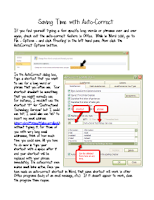

If there are long words or phrases that you find yourself typing over and over, you can save time by creating shortcuts for those words in Word. Then, when you type the shortcut, the long word or phrase will automatically be inserted in its place. This feature is found by going to File - Options - Proofing (on the left) - AutoCorrect Options (on the right). Once the shortcuts have been created in Word, they will work in other Office applications. Click the thumbnail for detailed directions and save yourself some time!

Monday, November 28, 2011

Pining 4 Pinterest

Have you heard about Pinterest? It's a great web site that functions as a virtual bulletin board. As you surf the web, you can "pin" a web site-- including pictures and notes-- to your board. If you find a good recipe on Food Network, pin it to your recipe board. Need to get  organized for Christmas? Create a board for gift ideas. And that's not all.
Pinterest is interactive like Facebook. You can follow your friends, comment on their boards, and "repin" their ideas for future use.
So now you know that Pinterest is like a virtual bulletin board. It's fun and interactive. But how does this apply to your classroom?
Some teachers are using it as a shared, collaborative space to collect lesson ideas and web sites. You might start with your grade level teams or departments and create boards for upcoming topics or units. For example, I have boards with the following categories: Promethean, iPad, and School (as well as boards for recipes and craft projects.) http://pinterest.com/j_waldroop/
Jennifer Stelzer, our Art teacher, has a board for Zentangles. http://pinterest.com/jenniferstelzer/zentangles/
Check out these boards and see what you think. But beware, it's addictive! :)


Website of the Week:
Smithsonian Education has created resources for easy book projects designed to get families talking about their heritage and creating a memory book together. Check out the samples and instructions on the Smithsonian web site. 
                                                                                
Tip of the Week:
Take 5 minutes and update your Activinspire software.
Open ActivInspire> From the Dashboard, click on Configure then click Check for updates.

Monday, April 18, 2011

Google Forms - They can make your job easier.

Google Forms are a great way to instantly gather data from a variety of sources – parents, students and colleagues - with very little effort on your part and without requiring them to have a Google account of their own.  All they will need is the link to the live form that you create. Whether you have 20 students or 125, creating a spreadsheet from scratch and adding data yourself can be quite time-consuming.  A Google form will automatically create a spreadsheet  that is populated in real time with data that others enter into your online form.

Here’s more information on creating a Google form, sharing it with students or parents, and accessing the spreadsheet and  66 interesting ways to use Google forms in the classroom. This is a Google presentation created and shared by Tom Barrett from Nottingham, England. He has given everyone rights to add their own ideas to this presentation so more examples are sure to be included.


Just for fun - if you would like to try out a simple form, click here. You can see your response and others  in this spreadsheet.  Note: the share settings were changed so that anyone with the link can see the spreadsheet even without an account. 

Tip/s of the week:
#1 – In most browsers, you can right-click on a hyperlink to choose to open it in a new tab rather than a new window.  You can also hold down the Ctrl key while clicking a link to open it in a new tab.
#2 – If you accidentally close a tab in Internet Explorer or Firefox, you can reopen it by pressing Ctrl-Shift-T.

Web ResourceThinkfinity is a great free source of lesson plans and educational resources for all grade levels and subject areas.

Sunday, February 13, 2011

Technology Time Savers

Have you ever wished for extra time? A 25th Hour? If so, these tips are for you!

1. Manage Files Online.
If you work on files at home and school sometimes it’s hard to keep up with which file is the most current. Solution? Use a site like Drop Box as an external drive online. No need to email yourself or keep up with a flash drive.

2. Organize bookmarks.
Using a social bookmarking site such as Delicious or Diigo, you can access your favorite internet sites anywhere you have access to the internet. You can even share your sites with friends and colleagues.

3. Give your mouse a rest… use keyboard shortcuts.
Ctrl+A Select all
Ctrl+C Copy text
Ctrl+V Paste text
Ctrl+X Cut text
Ctrl+Z Undo
Ctrl+S Save
Ctrl+P Print
Ctrl+B Bold text
Ctrl+U Underline text
Ctrl+I For italic text
Ctrl+Shift+> Increases the font size by a half point
Ctrl+Shift+< Decreases the font size by a half point


Tip of the Week: 
Use Alt+TAB to cycle through open items.

Web Resource: Common Craft
Common Craft is one of my favorite sites. The creators of Common Craft explain technology concepts in plain English. No need to speak techie. Check out their site for short, simple explanations of technology concepts like Social Bookmarking, RSS Feeds, and Blogging.