Monday, March 20, 2017

#TCEA17 Favorite Finds

This is a guest post by Teri Weber, science teacher at Carroll Middle.


This is my second go-round at TCEA, and it was as amazing as the first time!  Some of the session ideas that I am excited about are:

Augmented Reality

  • Jeff Peterson shared many apps for various levels (his presentation is available on his website). The apps he mentioned included subjects such as the heart, books where the characters "come to life," art, animal cells, the brain, and Popar World Map. Get the links for these apps (and more) by visiting Jeff's Symbaloo
  • Additional sources can be found here
  • For young learners, AR Flash Cards have free printable alphabet flash cards. When you use the app, an object comes "alive." When you touch the screen, it speaks the word and -- if the object is an animal, it makes its sound (ex: "D" is for dog...then the dog barks).


Nearpod

This is one that has been around a while, but their "gold edition" version has many virtual reality field trips. They also have 3D pictures that can be added to presentations. Nearpod has added lessons for ELL and can now be integrated into Canvas.


Technology and Differentiation 
This session, which can be found by clicking here, gave ideas on how to differentiate student projects, give end choices, etc. with technology.


That Quiz
  • Great for math
  • Can be customized – can select problems, level, use a timer, and provide feedback. 
  • Has science elements such as cells and anatomy

Hope you can check out some of these resources!

Wednesday, March 8, 2017

#TCEA17 Favorite Finds

This is a guest post by Leah Schwedler, STEM teacher at Carroll Senior High.


I loved visiting TCEA for the first time this year. I was blown away by all of the creative and engaging ways to incorporate technology into the classroom at all learning levels.

My biggest takeaway from TCEA was the concept of StoryMaking and all of the tools that support students as they create and tell their story. Here are some tools and tips that I picked up regarding StoryMaking:

A student group from Rendon Prep in WA presented using Sway, which is an interactive presentation tool. I plan to utilize this application the next time my students need to create a presentation. These students demonstrated the use of social media in their communication and told the audience, “Each of you have a story to tell.” (Don’t be afraid to use social media to tell your story!)

If you’re interested in the concept of StoryMaking, a great educator to follow on twitter is Dean Shareski.

Another interesting topic was the use of Snapchat in education.  Although Snapchat is often thought of as something that should not be used/encouraged in school, there are actually many useful ways to incorporate Snapchat in the classroom. Using Geofilters and hashtags (for example, #schoolisasnap) are easy ways to organize and communicate photos from your classroom or school. The presenter’s position was that we need to communicate the way “our people” are communicating if we want to tell our story effectively. This may mean using Facebook, Twitter, or Snapchat to let the community know what is happening in our classroom.

My favorite find at TCEA was Virtual Reality! I was amazed at the ways educators are incorporating the use of VR into the classroom in so many innovative ways. I was also surprised at the cost-effective ways to use VR, including both VR goggles and 360 cameras. I am looking at Google Cardboard and the Ricoh Theta SC Camera to use in my robotics classroom so that students can communicate their experiences in an innovative way. VR is certainly a technology that our students will be using, so adding it to our classroom experience will be another way for students to be encouraged to tell their story!
Tuesday, March 7, 2017

#TCEA17 Favorite Finds

This is a guest post by Stacey Gillis, 2nd grade teacher at Carroll Elementary. 


This was my first year at TCEA, and I'm hooked. I can't wait to go back next year. I found so many new ways to integrate technology and new apps to use with my students.

My favorite find at TCEA was definitely the Fab and Free website created by Shannon Long. When I saw the word "FREE" I knew I was in the right place. What more could any teacher ask for? This website has links to free educational sites and apps. You can find anything from Language Arts materials and resources to music websites that teach students about rhythm. Each category of resources is divided into primary and secondary resources. My favorite section of this website is the "Just For Fun" section. There, you will find virtual bubble wrap, virtual Jenga, attack of the cute (adorable), and much more.

Other websites by Shannon that you may like include:

Monday, March 6, 2017

#TCEA17 Favorite Finds

This is a guest post by Ann Astrin, 2nd grade teacher at Old Union Elementary.


My School Avatar
I am excited to begin using this app so my students can have a new way to express themselves and share their learning!  With this app, students can design and personalize their own avatar to create their own animated, talking, video presentation.  I plan on using My School Avatar with my students so they can retell stories, explain new concepts in math, science, and social studies, as well as to share their writing orally.

My class will be using this app to share their latest economics project by taking a picture of it, uploading the picture for the background of video, creating an avatar, and using it to explain the process to others.  We will upload the video to Seesaw at the end to save and share -- app smashing!


Shadow Puppet Edu
I LOVE this app!  With this app, students can easily create videos in the classroom! They can make videos to explain ideas, tell and retell stories, record learning, and more!

My students have recently used this app during our character study unit to profile the inside traits of a main character in our read-aloud series. After creating the video, they uploaded it to Seesaw to save and share -- again, app smashing! This app allows students to take and upload pictures, record their voice, explore and type text, and even sequence the pictures they have chosen.  It also has a tutorial for you to view before attempting to use.

Click here to view work one of my students created using Shadow Puppet Edu.


Fab and Free
Wish you had access to tons of great educational sites and apps without having to pay a single penny? Well, this site has them! I know you will find lots that you will be able to use in your classroom - for FREE!

Monday, February 27, 2017

#TCEA17 Favorite Finds


As always, TCEA's annual conference was amazing and did not disappoint. Here are a few of my favorite finds:

G Suite Training Extension - This free Chrome extension provides interactive training lessons on the various G Suite (formerly Google Apps) products. Once the extension is installed, the simple, interactive trainings can be accessed by clicking the question mark in the top right corner of the browser window. When activated, the training lessons appear within the application....meaning you don't have to leave the application to learn about it. The extensive training topics vary from beginner to advanced and are arranged in short videos that are chunked by category. If you are a Google user, this extension is a must!

FlipQuiz - Ideal for interactive whiteboards, FlipQuiz is a quick way to create gameshow-style boards (think Jeopardy) to use as a fun review game with your students. Using this tool, teachers can create new, customized game boards, or search the community for shared resources. FlipQuiz is free, but also offers additional features and options in the Pro (paid) version.

CuePrompter - CuePrompter is a free online teleprompter tool. Simply type your script in the box, adjust fonts, prompter window size, and font colors and you're all set for a professional video!


To access over 500 TCEA handouts, please click here. You can also follow along on Twitter by searching for #TCEA17 to read everyone's tweets, or by searching #TCEADragons to read just what CISD employees tweeted about this conference.

Thursday, February 23, 2017

#TCEA17 Favorite Finds

This is a guest post by Bailey Buck, 1st grade teacher at Johnson Elementary.


That Quiz
  • Not an app; it is a website but you can add to your iPad screen from Safari 
  • For math quizzes
  • You can make your own quizzes (if you have an account) or use quizzes that are already made
  • Great differentiation (number of questions, level, time)
  • Topics include (but are not limited to): time, money, arithmetic, shapes, number lines, place value
  • Free
I have already used this with my students, and it is awesome! The kids love it and ask to do it all the time. It has great feedback and gives me an idea of areas that we need to work on and skills that we have mastered either individually or as a class!


Quizizz
  • Free app
  • Like Kahoot BUT…
    • Students work at their own pace (able to change the time length)
    • You can turn music on/off
    • The questions and answer choices are on the student individual iPad (not on your board like Kahoot)
    • Questions go in different orders
    • You can have the questions and answer choice read aloud to the students (so awesome!) 
    • Takes the “race” aspect out of the game (in contrast to Kahoot)
THIS IS AWESOME! It's favorite app that I learned about at TCEA! My students loved Kahoot, but I had some students who would just press a random answer to be the “first person who answered.”

With Quizizz, it is not a race, and the students are working on their individual iPad to answer and read the questions (rather than looking on the board for the question). The students love it just as much as Kahoot!


Virtual Manipulative Apps (all free)
I downloaded all of these apps, and the students have been using them, taking a screenshot, uploading in Popplet, saving it, uploading to Seesaw, and sharing…triple app-smashing!!

Here is an example of students have done:
  1. Used the app “Pieces Basic” and made a number using tens and ones blocks. 
  2. Took a screenshot, went to Popplet, uploaded the screenshot, and added more text to describe their blocks.
  3. Saved the Popplet and uploaded to Seesaw…
And my students are first graders!!!! 


Chatterpix Kid
  • Free app
  • Make your photos, friends, or drawings talk (students take a photo, draw a line over the mouth and record their voice...then save and share on Seesaw…app-smashing!!)
The students have so much fun with this app! One way that I have used this app is during our unit over Famous Americans. We studied each Famous American and learned why they are important.

The students then drew a portrait of the Famous American. Students took an iPad, took a picture of their drawing, drew a line over the mouth, and recorded their voice acting like they were that Famous American, saved it, then uploaded to Seesaw! Click here for an example.


Newslea
  • Free app
  • Safe news site for kids to use
  • Can change the Lexile reading level (there is a writing prompt and quiz to go along with the article)
  • Can change grade levels
  • News Article writing template free on Teacher Pay Teachers
I have not yet used this tool, but it looks fun!


Draw and Tell
  • Free App
  • Cn be used for telling stories: draw, color, and record voice
  • Create a story: talk about your drawing or tell a story, move the stickers as you talk, save drawings with recordings, and then upload to Seesaw…app-smashing! 
I have not yet used this app, but it's on my "to do" list.

Wednesday, February 22, 2017

#TCEA17 Favorite Finds

This is a guest post by Cindy Featherston, Quest teacher at Rockenbaugh Elementary.


What did I learn at TCEA? What did I not learn! The annual state technology conference always makes me excited to share and ready to try new things. One thing that I picked up from several sessions was the idea of integrating games into the curriculum. Here are some resources to some exciting new ways to integrate games and get your kids excited about learning. 
Breakout EDU
Breakout EDU is an immersive game platform for learners of all ages. In Breakout EDU games, players work collaboratively to solve a series of critical thinking puzzles in order to open a locked box. Each Breakout EDU starter kit can be used to play hundreds of games. I purchased my first box last summer to try this new idea, and my students love it. I was glad to see the co-founder of the program presenting at TCEA. Learn more by clicking here.

Bloxels 
Bloxels is a first-of-its-kind technology that enables you to build, capture, design, play and share your very own video games. Designed with blocks, a universal element of childhood play, Bloxels cultivates imagination while encouraging discovery and experimentation.

With Bloxels, you can realize your own video game ideas, build and animate original characters, develop villains, add in power-ups, and more. This would be a great new way for student to write and develop a story. Learn more by clicking here.

Tuesday, February 21, 2017

#TCEA17 Favorite Finds

Now that the Instructional Technology and Dragons Go Digital teams are back from TCEA and have had some time to process what we've learned, it's time to share our favorite finds! If you attended the conference and want to contribute a guest post, please contact your campus ITS; we'd love for you to share what you learned.


Here are my favorite finds from #TCEA17:

1. Create Cartoons/Avatars in Google Drawings or Microsoft PowerPoint -- Kristy Edgar is a middle school teacher who creates cartoon videos to spice up her American History lessons (here's an example called "American Revolution, ep. 2: Allies are Friends"). She creates characters using basic, 2D geometric shapes and then uploads her final products to her YouTube channel. Not only could this be a fun addition to your instruction, but it could also be nice for students to make their own characters to review geometric shapes and show their learning in a creative, "techy" way. Click here for her full presentation.

2. Symbaloo Lesson Plans -- This hidden feature of Symbaloo allows teachers to find structured, media-rich lesson plans in the marketplace or create their own. The resulting plan looks similar to a board game with text instructions, web pages, search bars, web articles, videos, math formulas, and/or embedded content sprinkled inside. Teachers can even customize the board so it forces learners to go on a specific path based on their answers. (Click here to see an example lesson plan about the solar system.)

Teachers need a free Symbaloo account (or upgrade to the Edu version -- also free) in order to create or assign lessons, but students don't have to log in at all, which makes this tool perfect for everyone -- including young learners without an e-mail address. When students start a Symbaloo assignment, it prompts them to enter their name and the assignment number. Then the teacher can easily track data -- including results, when assignments were started, how long they took to complete and/or how far each student was able to progress in the assignment, questions answers correctly vs. incorrectly, and more.

Click here for the Symbaloo Lesson Plan Manual, or click here for a quick YouTube video overview.

3. Photos for Class -- Part of practicing good digital citizenship is making sure we use only images we have permission to use online and in presentations. Teachers and students can always conduct advanced Google Image searches to filter pictures based on rights...or we can use websites that make the process a little easier. For instance, Tony Vincent tweeted about PhotosForClass.com, which allows users to search for copyright-friendly photos that are already watermarked with a citation when downloaded:


To access over 500 TCEA session handouts, please click here. You can also follow along on Twitter by searching for #TCEA17 to read everyone's tweets, or by searching #TCEADragons to read just what CISD employees tweeted about this conference.

Tuesday, August 30, 2016

Ten Tech Tricks to Start the New School Year

Welcome back, Dragons! Here are ten tech tips and tricks to help you get settled into the new school year:

1. If your Promethean board will not turn on:
  • If the AMX or Calypso panel does not turn on the board, try unplugging the power cable on the projector and plugging it back in to reset the board. 
  • If the board still will not power on, enter an Eduphoria Helpdesk ticket (click here for directions on how to do that).

2. If your Promethean pen does not work:
  • Check the USB cable and make it is plugged into the laptop and wall.
  • Try a different USB port on the laptop.
  • Enter an Eduphoria Helpdesk ticket if the pen still does not work. 

3. Add a district network printer:
  • On your computer, click the Windows "Start" button in the bottom left corner. Type \\cisdprint02 in the search box and press the enter key, as shown below:

  • A list of district printers will appear. Find the printer from your campus and double-click on it to install. 
  • You will find installed printers by going to the Start button and clicking on "Devices and Printers" on the right side of the Start Menu.


4. Outlook Client vs. Outlook Webmail:
  • The Outlook Client is the Outlook software that's already installed on your computer. You can find it by going to the Start button (in the left corner of your computer) > all programs > Microsoft Office 2013 folder (or you can search "Outlook" in the search box at the bottom of the Start Menu). This is the full Outlook software and the version we recommend you use when possible. 
  • The Outlook Webmail version is the lite/free version (shown below). 

  • Note: The district cannot fix issues you may experience with the web version of Outlook, which is why the client/software version is preferred. Eduphoria Helpdesk requests can be entered for issues that may arise with the software. 


5. District staff links:
It is good practice to bookmark the staff links in case the district website is not available. Click the words below to access the links, and then bookmark them on your staff computer:


6. Google Chrome vs. Internet Explorer:
  • Chrome allows users to sign in to their Google account, which saves all bookmarks to the browser, no matter what device is used. (The Chrome Web Store also has some pretty handy extensions you can install into Chrome to give it more features!)
  • Internet Explorer saves favorites to your device only; users must export and import bookmarks. 
  • Some district applications work better on different browsers. If you notice that a district application (such as Skyward or Eduphoria) experiences difficulties, try switching browsers first.


7. Skyward Educator app for attendance:


8. Snipping Tool:
This tool allows you to take a picture of anything on your computer without having to take a screenshot of the entire page. 

To find and use this tool:
  • Click the Windows Start button in the bottom left corner of your staff computer. 
  • In the search bar, type "snip," as shown below:

  • Click on the Snipping Tool program, and the window shown below will pop up on your screen:
  • Now click and drag anywhere across the screen to take a screenshot of the content of your choice. Afterward, a box will pop up to allow you to preview your snipped selection. Be sure to save it somewhere on your computer before exiting. 


9. Pinning applications to the taskbar:
Right-click on an application. Choose "Pin this program to taskbar" for it to stay at the bottom of your screen at all times (whether the program is open and in use or not). 


10. Voice dial:
Dial 8221 on your classroom/office phone to access the audio directory. Say the name of the person you wish to dial, and the directory will dial the number for you!

Tuesday, May 24, 2016

Summer Selfies and Digital Safety


Schools out for the Summer! 

Kids are ready for a break and teens and tweens have unlimited amount of digital interactivity at their fingertips. 

With less supervision and more time on their hands, it is important for parents to have well-defined guidelines for how to use social media. 

Parents have questions about teen social safety, how they should be monitoring and if so, how and how often. Josh Ochs, with Safe, Smart & Social, an organization that teaches students how to shine online, has created a popular App guide for parents and teachers. 


Social Media Safety App Guide


Resources: 

http://www.communicationsmaven.com/uncategorized/no-summer-vacation-for-digital-safety-parents-its-on/

https://safesmartsocial.com/teen-social-media-safety-tips-parents/


Wednesday, May 4, 2016

10 Must-Do's Before Giving a Kid an iPhone or iPod

Today's generation was born with a device in their hand; not really but it sure seems that way. As a mother of teen daughters, I want to know the best way to keep them safe on their devices. The device of choice for our household is Apple. It is the device I know best and can protect my girls to the best of my ability. This post is a collection of things I feel are "must-dos" before handing your child an iPhone or iPad. Some of these I followed, some I learned about later and put into action. 
  1. Set Up Family Sharing
    • Family Sharing allows up to six people in your family to share each other’s iTunes, iBooks, and App Store purchases without sharing accounts. As a parent, kids will share the credit card on file for purchases, but you must approve them first. You can also share photos, calendars, and Apple Music. 
    • Here are a few resources for Family Sharing: 10 Things to Know Before Enabling Family Sharing; What is Family Sharing; and How to Set Up Family Sharing.
    • I currently do not use Family Sharing because this option was not available when my daughters first received their devices. Since then I have moved my oldest to her own account, but since she is in college, she manages that account with her debit card. 
  2. Create Apple ID for Child
    • Apple now lets you create a child account for children under 13. You must participate in Family sharing to set up a child account. I'd suggest enabling "Ask to Buy" option, so your approval is needed for any purchases and enabling "Share Location." 
    • Here's a guide on how to create an Apple ID for minors. 
  3. Set Passcode
    • Establish a passcode for your child's device. You can enter a six-digit passcode. Or tap Passcode Options to switch to a four-digit numeric code, a custom numeric code, or a custom alphanumeric code. For young children, I'd suggest a simple four-digit numerical code. 
  4. Set Touch ID
    • You must first have a passcode before using the Touch ID. You can add up to 5 fingerprints. I'd suggest adding parent fingerprints to children devices.
  5. Enable Find My iPhone
    • Find My iPhone is great for locating lost phones, but my favorite way to use it is for stalking my daughters. Just kidding...not really. I use this feature to track my oldest daughter when she is traveling home from college. On a funny note, she knows I do this and one day she texted and said: "Can you ding my phone because I cannot find it in my dorm room?" 
    • Features of Find My iPhone: 
      • Activate Lock Mode
      • Erase iPhone
      • Display a Message if Lost
      • Track Phone (track for last 24 hours when in lost mode)
      • Play Sound
  6. Set Restrictions
    • I'd suggest setting the following restrictions on devices for children:
      • Safari - when you enable Safari you give children access to everything on the internet. I'll talk later about the possibility of a safe browser for iOS devices.
      • In-App Purchases
      • Change ratings for Music, Movies, TV Shows, Books, Apps, and Websites.
  7. Consider Purchasing Safe Browser
    • There is no filtering system for Safari when using mobile devices when connecting to a cell service. 
      • As an option, you can have them to connect to your personal wifi and set restrictions on your wifi.
      • Purchase a safe browser for iOS devices. Mobicip is not a free service, but it does have some great features. Here are a few:
        • Parent/Admin App
        • App Monitoring
        • View Browsing History
        • Access Requests - user can request for sites to be unblocked
        • Time Limits
        • Custom Filter Settings - allow/block domains, blacklist phrases.
        • Multi-User, Multi-Device Management
  8. Get Protective Case
  9. Get Screen Protector
    • Screen protectors are a great way to protect your glass from breaking. My new favorite screen protector is made by Zagg and called the Invisible SHIELD glass protector. The shield is made out of glass, so if you drop your phone, the idea is that the glass screen protector will break before the device screen. Another great benefit of the Zagg screen protector is that it comes with a lifetime warranty. Yes, I said LIFETIME WARRANTY.  Things to do when you buy the Zagg Invisible Shield:
      • Go online to Zagg.com, create an account, and register your screen protector. 
      • When your Zagg screen gets a crack or break, go online and request a replacement.
      • When the replacement arrives, change out the screens but KEEP THE BROKEN ONE. You must return the damaged one in the self-addressed envelope sent to you. 
      • Screen replacements cost anywhere from $0-$10 plus $6.00 for shipping.  
  10. Consider Apple Care
    • Apple offer extended warranty services. For children and teens I recommend this service. I can't tell you how many times we've replaced our phones with broken screens when my girls were younger. Here's a link to What to know about Apple Care for iPhones.
Resources:
Costello, S. (2016). 14 Things to Do Before Giving Kids an iPod touch or iPhone. About.com Tech. Retrieved 3 May 2016, from http://ipod.about.com/od/KidsiPhoneiPodTouch/tp/Nine-Things-Before-Giving-Kids-Ipod-Touch-Iphone.htm

AK, S., Ranjit, P., Lee, S., Firdaus, T., Firdaus, T., & KS, A. et al. (2016). 5 Ways To Make Your iOS Devices More Kid-Friendly And Child-Safe. Hongkiat.com. Retrieved 3 May 2016, from http://www.hongkiat.com/blog/tricks-make-ios-device-kid-friendly/

Carlson, J. (2016). 10 Things to Know Before Enabling Apple's Family Sharing | 1: You need iOS 8 and OS X Yosemite. | Peachpit. Peachpit.com. Retrieved 3 May 2016, from http://www.peachpit.com/articles/article.aspx?p=2320215

How to create a new child ID for Family Sharing. (2014). iMore. Retrieved 3 May 2016, from http://www.imore.com/how-create-new-child-id-family-sharing


Tuesday, April 26, 2016

Online and Mobile Device Safety

Digital Citizenship..." the quality of habits, actions, and consumption patterns that impact the ecology of digital content and communities" via teachthought.com. The rise in technology sales affects us all as parents. So how will we protect our children from the dangers and unknowns when using technology?

To help parents with this task, we've compiled a list of resources for internet safety and tips/tricks for using devices.


On the CISD home page, under Departments / Technology and then Tutorials and How Tos / Digital Citizenship.
Read more for explanation of some of our favorites.

Common Sense Media
Common Sense Media website has a review page. On this page, they discuss movies, video games, apps, television shows, books, and websites. The review page is filtered by age, entertainment type, topics or ways to browse. 

Family Online Safety Institute
The Family Online Safety Institute states that their "work encompasses public policy, industry best practice as well as good digital parenting." There is an entire section devoted to good digital parenting

Eanes ISD Digital Parenting Course in iTunes U
The description of this course according to iTunes: "In this course, you will find resources, projects and quizzes designed to enhance parents' knowledge of the world out there and what tools do families need to be equipped with to better travel the digital road ahead."

The Truth about Teens - Everything is Social Media
Carl Hooker, the Director of Instructional Technology in Eanes ISD, wrote this blog post about teens and social media. Reading this post would be a good place to start as a parent of pre-teens and teenagers. 

There are hundreds of resources available for parents. These are just a few. Feel free to comment on resources that you find helpful in helping your children become good digital citizens. 


"Eanes ISD Digital Parenting Course-Free Course by Eanes The Truth about Teens-Everything is Social Media, Web 26 Apr. 2016 <https://itunes.apple.com/us/course/id868356158>

Tuesday, April 19, 2016

Recap

Have you heard about Recap? It's a relatively new tool that has some great features! In a nutshell, Recap is a completely free assessment resource (available on the web or through an iPad app) that lets students respond to the teachers' questions or prompts via video.

Website | iPad App

With recap, teachers can...
  • create questions that are typed or voice-recorded 
  • choose how students will sign in: 7-digit alphabetical PIN or e-mail address/password
  • add up to 10 questions in a single assignment (and, as of the newest update on April 12, teachers can now give more than one assignment to students at a time)
  • give an assignment to the whole class or only certain students
  • set a max response time to make grading faster and students' answers more precise
  • set a due date for assignments
  • add a poll at the end of an assignment that asks students how well they think they understood the material
  • view individual student information or the entire class's responses as a whole
  • grab the link to an individual video to share with others (e.g. parents, admin, your co-teacher, and/or social media)
  • leave written feedback/commentary on student videos 

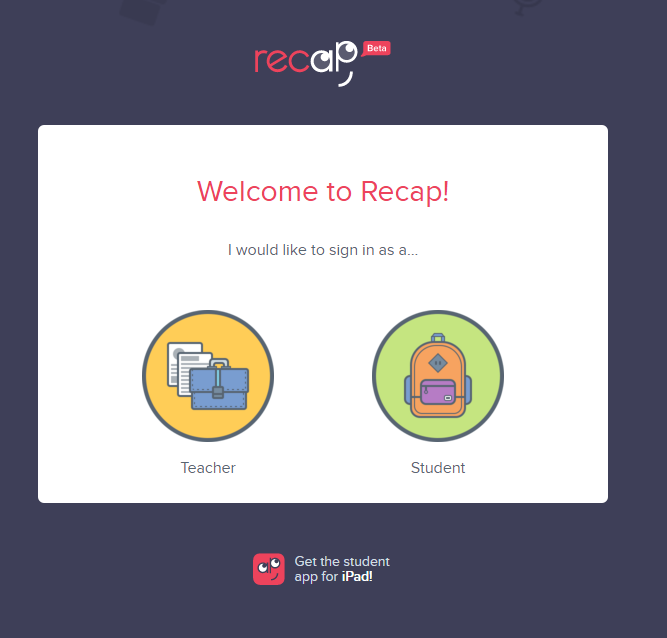
The view is super-simple from the students' side. Learners indicate that they are a student on the login screen:


Students can sign in with a class PIN or an e-mail address (whichever option the teacher enabled when he/she set up the class):


If signing in with a PIN, the child must then select his/her name from the class list before seeing any assignments:


The student dashboard allows learners to see previously submitted assignments as well as those that have not yet been completed. The dashboard is also where students can view feedback from their teacher on submitted assignments. (Note that students cannot see other students' assignments or answers.)


This video -- filmed by EdTechTeacher's Greg Kuloweic -- shows you Recap in action from both the teacher and the student side (but keep in mind that a couple of features have been added since this video was released):


I already use Seesaw...should I still consider Recap?

While there are similarities between Seesaw and Recap, it's important to recognize that these are two completely different resources. Recap is strictly for assessing students via video (and follow-up poll if the teacher enables it), while Seesaw is more of an ePortfolio tool that happens to have a video feature, too. If you are a Seesaw user, you may still consider incorporating Recap for the opportunity to differentiate questions and/or allow students to turn in video responses confidentially. 

To integrate Recap with Seesaw on iPads, first make sure the Recap app is on all student devices. Then push a note in Seesaw to the entire class with the login information (e.g. 7-digit PIN if students are without e-mail addresses), as shown below.

Seesaw user tip: create a folder just for login information

While students cannot copy the PIN from the Seesaw note directly into the Recap app, this at least provides a consistent place for students to find login information independently. 


Resources:

Tuesday, April 12, 2016

Canvas is Coming!

Carroll ISD has selected Canvas Learning Management System as the district LMS for grades 5-12. Over the course of this school year, teachers and students from each campus have worked to pilot the system and share best practices for using Canvas in the classroom.

What is a Learning Management System (LMS)?
A learning management system is a software application or web-based technology used to plan, implement, and assess a specific learning process. Typically, a learning management system provides an instructor with a way to create and deliver content, monitor student participation, and assess student performance.

What do I get with Canvas?
  • Student-centered learning with anytime, anywhere access to learning materials
  • Differentiate learning with multiple learning paths
  • Digital workflow solution; efficient and streamlined way to manage student learning
  • Facilitate blended learning with an online platform

How can I use Canvas in my classroom?
  • Communication Tool: 
    • Teachers can use the announcement and real-time calendar feature for students and parents. 
  • Paperless classroom: 
    • Teachers can upload files to Canvas for anytime, anywhere access and create digital assignments and quizzes.
  • Empower Student Collaboration:
    • One of my favorite features of Canvas is the ability for student collaboration. With Canvas, a teacher can create student groups, participate in class discussions, and have student offer peer reviews on assignments.
  • Gather Formative Assessment and Feedback: 
    • Canvas has a grading feature for assignments, discussions and quizzes through Speed Grader. The most powerful tool is the video feedback feature for teachers and students. 
  • Integrate Web Tools that You Already Use:
    • What web tools do you currently use as a teacher? Google Docs? Google Slides? Nearpod? ThingLink? Padlet? EDpuzzle? Smore? Tackk? 
    • If the web tool has a share link or an embed code, you can add that link or embed that page to your Canvas course. 
(click for video)
Resources:
What is learning management system (LMS)? - Definition from WhatIs.com. (2016). SearchCIO. Retrieved 13 April 2016, from http://searchcio.techtarget.com/definition/learning-management-system

Wednesday, April 6, 2016

What's New with iOS 9.3

Apple's iOS 9.3 is here so what does that mean for Apple users? There are three significant updates: night shift, notes, and education. If you have yet to update your iOS device, you may want to read this "throwback" post on what to know before downloading any iOS updates. The post is about iOS 7, but the two rule of thumb principles on what to do before updating still apply today. http://goo.gl/bdDaFV 
Here is what you need to know about iOS 9.3 (by now there is already a 9.3.1 update)
  • Night Shift
    • Apple has made the display "color friendly" by giving users an option to use warmer (orange color) color tones at night. For my fellow iPad readers at night, you can set your night shift display to turn on automatically with the schedule feature. 
    • You can also access Night Shift in the Control Center.
    •  
  • Notes
    • Now you can better protect your notes by locking them. Locked notes require a password to unlock or use the fingerprint feature to open.
    • Click this link to read a tutorial on how to lock notes on an iOS device. 

  • Education
    • For years, the iPad was meant to be a single-user device. As schools deployed shared sets of iPads into the educational world, the problem of managing shared sets became a huge problem for classroom teachers. Multiple users on the same device caused students to lose work or their settings. With iOS 9.3 managing multiple users on a single device could be a significant selling point for education.
    • This update offers the following educational features:
      • Shared Sets
        • Students can pick up where they left off.
        • Once a student logs in, they have access to all their apps and materials.
        • Simpler login for younger students.
      • New Classroom App
        • This app becomes the "teaching assistant" for the educator.
        • Teachers can see any iPad screen of students with Screen View.
        • Teachers can reset forgotten passwords. 
        • Teachers can launch an app or website or lock an app to keep students focused. 
      • Apple School Manager Portal
        • The manager portal is more of a technical feature used by technology to enroll and set up iPads.
    • NOTE: The education features is initiated at the admin level. Currently, the technology department is exploring these features and speaking with an Apple engineer on the functionality of this update. 
Sources:
Swider, M. (2016). iOS 9.3: What features are in the new iPhone and iPad update?.TechRadar. Retrieved 6 April 2016, from http://www.techradar.com/us/news/phone-and-communications/mobile-phones/ios-9-3-update-new-iphone-and-ipad-features-1313731

Tanous, J. (2016). How to Lock a Note in the iOS Notes App. TekRevue. Retrieved 7 April 2016, from http://www.tekrevue.com/tip/lock-notes-ios/

Education - Mac, iPad, Apple TV. (2016).Apple. Retrieved 7 April 2016, from http://www.apple.com/education/products/#learning-with-ipad

Education Preview - Apple (UK). (2016).Apple. Retrieved 7 April 2016, from http://www.apple.com/uk/education/preview/

Wednesday, March 23, 2016

#TCEA16 Favorite Finds


Guest Post by Rebecca Gould, Carroll Senior High School French Teacher

I felt so blessed to attend the TCEA Conference February 3-5 in Austin. I’m always eager to learn and incorporate new strategies in my classroom. TCEA did not disappoint. There was a wide array of classes and workshops to attend, covering a huge variety of topics. 

As other attendees have mentioned, I enjoyed learning more about Google Add-Ons, which have all kinds of applications.


I have also enjoyed discovering Quizizz and using it in class. We use Kahoot to review, then Quizizz as a formative assessment. The students can quiz on their own devices, go at their own pace, and get immediate feedback. The instructor can then get the class results in an Excel spreadsheet to enter as a grade. You can upload images to accompany the questions.


I couldn’t be more excited about the Google Cultural Institute (art project, historic moments, world wonders) for art, history, geography, social studies, and world language teachers. I didn’t even know it existed before the conference. I’m going to enjoy taking my students on virtual tours of French art in museums around the world


I’m also excited to try Microsoft OneNote, an amazing digital note-taking app. 


There are two main reasons that I’m grateful that I had the opportunity to attend TCEA:

  1. My comfort level with new technology increased. I’m willing to take more risks with new apps and software, which ultimately improves student engagement and learning. 
  2. It was so much fun! I developed relationships with amazing teachers from other CISD campuses and had the opportunity to swap insights.

Tuesday, March 22, 2016

10 Top Cyber Security and Online Safety Tips: TCEA Favorite Finds from Digital Citizenship Sessions

Digital Citizenship, data breaches and vulnerability, data thieves, student data, your private info and passwords, shopping online, using Wi-Fi and storing in the cloud. The recent deluge of password security breaches at major retailers and companies heightens our awareness of the risks of cyber-criminals.  As educators we want to prepare our students to be well informed Digital Citizens and I was on the hunt for TCEA sessions that would provide information and safety tips.

The message: protecting your identity and online reputation is 100% our own responsibility. What steps have you taken to safeguard confidential data at home and work?

Privacy online: Recognize it, take it seriously, report it and for students, involve parents.

This blog provides some basic points about vulnerability, password information, resources and provides you with some tools that can help protect your cyber security and online privacy.

Your passwords, digital safety, basic security and knowing how to attack the problem of hackers along with being a well-informed, vigilant individual helps keep you from being a target.

Your IT department is responsible for firewalls, updates and patches, antivirus, securing the networks, spyware defense, handling destructive malware and provide the services that we need to work. You are responsible for protecting your data, your identity and online reputation.

TCEA speakers Ms. Diana Ybanez and Mr. Enrique Pretel with Pharr-San Juan-Alamo ISD shared this password security website with campus administrators at the conference.

Tip #1: Test your Password: https://howsecureismypassword.net


Shift your thinking from 'passwords' to 'passphrases' 

Passphrase example where 'o' is replaced with '0':  'I enj0y bird watching 2016'

Observe how much more secure this passphrase is vs. the password above.


A strong passphrase:
  • is 20 to 30 characters long
  • is a series of words that create a phrase
  • does not contain common phrases found in literature or music
  • does not contain your user name, real name or company name
  • is significantly different from previous passwords or passphrases
  • hard to guess by intuition - even someone who knows the user well
  • easy to remember and type correctly
  • for better security, any easily memorable encoding at the user's own level can be applied
  • not reused between sites, applications and different sources
Create different passphrases: 
Low security: Basic web registrations
High security: mail, bank, student data and work network

Tip #2: Use 2-factor authentication. 

Helps prevent unauthorized use of your account unless they have your username, password AND your smartphone.

Tip #3: Encrypt all confidential data. 

Avoid carrying confidential data on flash drives, but if you must, encrypt it first. 

Tip#4: Avoid phishing scams via email links. 


And, don't click on email attachments. Save them to your computer and scan them first.


Tip #5: Protect yourself when you click, browse and buy online. 

McAfee offers a list of scams. This website provides info Mobile SMS Scams, Seasonal Travel Scams, Deceptive online Games, Shipping notification scams, Bogus gift cards, fake charities, romance scames and phoney E-tailers.

For complete article: 12 Scams for the season  http://tinyurl.com/m8ohefm


Tip #6: Think before you click: If you're not paying for it, you become the product: your secrets aren't safe

Consumer reports (July 2014) wrote an easy to read and understand (6 page) comprehensive article which addresses computer hacks, scams, smart phone hacks, malware, social media, at the doctors office, in the cloud, shopping, travel and how to protect your digital life. It includes a field guide to passwords, how to encrypt and software available to assist.

I encourage you to take time to read and apply these tips to help you attack the problem of hackers and keep you from being a target. http://tinyurl.com/q4yrfav

Tip #7: Check Privacy Settings Regularly

Check your privacy settings on all social media to ensure they work the way you want them to...ask for help if you are'nt sure what you're seeing. 

Tip #8: Protect your finances

Use a different email with 2 factor authentication for bank accounts and financial transactions.

Tip #9: Password Do's and Don'ts

Here are a few tips compiled from the KrebsonSecurity blog   http://tinyurl.com/q8kuwrb
  • Don't use a family members name or passwords with combinations of your confidential information, such as your Social Security or phone numbers. 
  • Don't use the same password for your secure accounts (banking, financial and credit cards) as you use for your email accounts. It the email account is hacked, your password is at risk for all your accounts. 
  • Complexity is good in a password, but length is the key to a good password. The more characters, the harder is is to attack. 
  • It's OK to write down your password information but don't leave it in plain site. Best practice is to write down your username and website information which you access and put a password hint beside this information.
  • There are several third-party programs that help to manage passwords, such as Roboform and PasswordSafe.

Tip #10: Important Password Tips Everyone Should Know

Vicki Davis writes on CoolCatTeacher and suggests switching to a passphrase, never saving passwords in a web browser, using the site name in your password, using a password manage and substituting numbers and letters. Again, the recommendation of using a unique password for your bank account and email is a reoccurring tip and recommended to change now.
http://tinyurl.com/mrjawko

References:


TCEA has provided links to session handouts. Click here to check them out.
Cybersecurity in the Classroom for Teachers: http://www.tceaconvention.org/2016/handouts/files/Session-161691.pdf
Top Security Tips for Teachers: http://tinyurl.com/tcea16
New threats for raising digital kids. https://usblog.kaspersky.com/securing-todays-kids/6894/
12 Scams for the season  http://tinyurl.com/m8ohefm
United States Computer Emergency Readiness Team: https://www.us-cert.gov/ncas/tips
Urban Legends and Folklore - http://urbanlegends.about.com/
TruthOrFiction.com - http://www.truthorfiction.com
Symantec Security Response Hoaxes - http://www.symantec.com/avcenter/hoax.html
McAfee Security Virus Hoaxes - http://home.mcafee.com/VirusInfo/VirusHoaxes.aspx
Microsoft Safety and Security Center: https://www.microsoft.com/en-us/security/online-privacy/default.aspx
Family Online Safety Institute: https://www.fosi.org/good-digital-parenting/cyber-ethics/
Google Digital Citizenship and Literacy Curriculum https://www.google.com/goodtoknow/web/curriculum/
Partnership for 21st Century Learning: http://www.p21.org/our-work/resources/for-educators